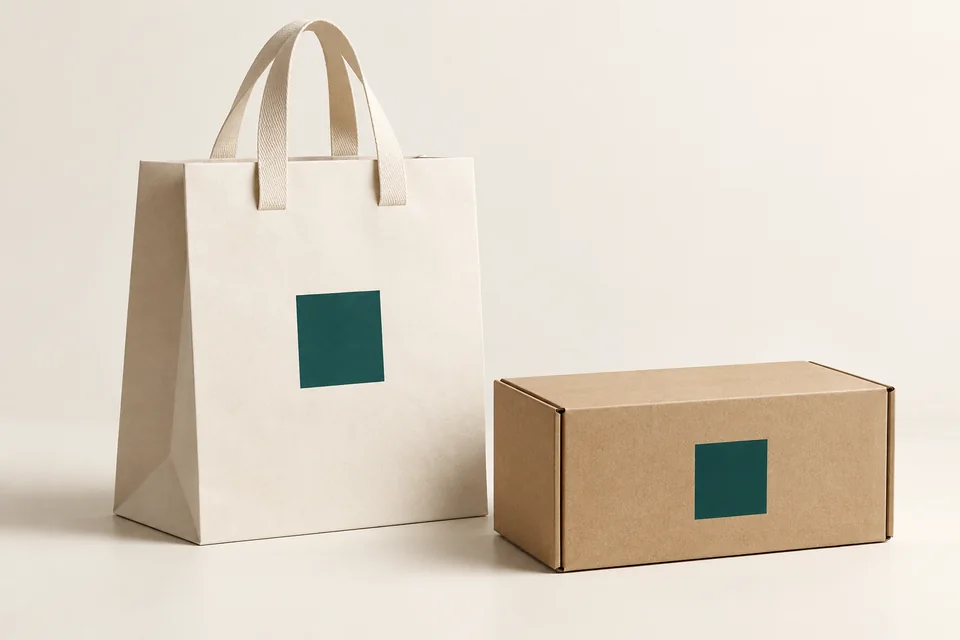
A QR that can be scanned in a file may not work well on the finished product packaging. The paper's background, gloss, folds, and handling can all be affected. It is necessary to check the code after printing and after completion.
Place the code in an easily accessible area
Choose a relatively flat area, not covered by straps or accessories. Avoid cut edges, folds and glued areas. The space around the code needs to be according to the code specification and confirmed during prepress.
Keep the code simple and clearly contrasted
Keep the contrast clear and do not manually edit the code boxes for decoration. Long addresses can create dense code that is difficult to minify. If used GS1 Digital Link, need correct identification and specification; QR links to regular websites do not automatically fall under this standard.
| Phase | Check |
|---|---|
| Last file | The destination is correct and the code content has not been modified |
| After printing | Realistic colors, sharpness and backgrounds |
| After completion | Reflexes, folds and accessibility |
Test with the device used by the buyer
Scan with many popular phones, at realistic lighting and holding angles. Check that the page opens correctly, reading conveniently on the phone. For readers at the counter or warehouse, it is necessary to check separately according to usage requirements.
A code on the glossy surface scans well when placed on the table but is glaring when held. When changing position or finish around the code, test again on the final sample.
Closing operational responsibilities
Lock the address manager, approve the content and pre-check each batch. The printed code needs to lead to a working page for the duration of the packaging's circulation.
Send SquareBag the QR code and intended use to jointly review the location, clarity, and scanability on the sample.
Reference source
Explore Design and publishing or Exchange specifications with SquareBag.
See Packaging Design group